⚠️Fiscal Year-End Purchasing Reminder
To use current fiscal year funding (FY25/26), all purchase orders (POs) must be received by our office no later than June 20, 2026.
Please plan ahead and submit orders early. All FY25/26 purchases must be for goods or services that will be received by June 30, 2026.
P-Cards remain active year-round. POs are processed on a first-come, first-served basis.
Orders not completed or received by June 20 will be charged to FY26/27. Please wait until July 1 to submit orders for the new fiscal year (FY26/27).
Red Dragon Depot (RDD) is SUNY Cortland's procurement system for processing purchase orders and P-Card orders through approved catalogs. The campus has used this system since 2017, significantly improving efficiency by creating a streamlined, paperless purchasing process.
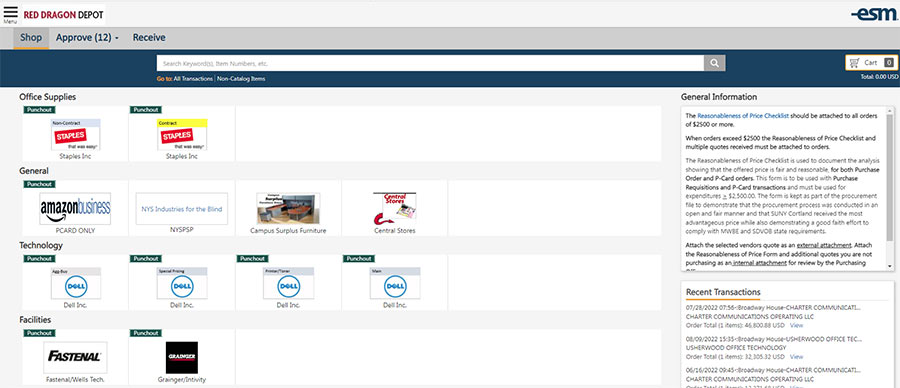
RDD relies heavily on automated email notifications to communicate important updates, including order approvals, rejections, and other status changes.
Email Notifications
To ensure you receive all RDD communications :
- All system emails are sent from noreply@esmsolutions.com
- Add this email address to your contacts or address book
- Check your spam/junk folder regularly to ensure messages are not misdirect.
When placing an order through RDD:
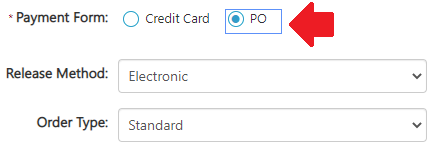
- At checkout, the Payment Form must be "PO", not Credit Card
- Office supplies should be ordered through your department's Administrative Assistant
Additional Resources:
Available Catalogs
Not all catalogs are available to every department.
- Technology catalogs are limited to Information Resources (IR)
- Access to additional catalogs can be requested if needed
Catalog Types
- Punch-out catalogs: Redirect users to the vendor's website to shop, then return the cart to RDD
- Hosted catalogs: Remain within RDD, allowing users to browse and add items without leaving the system
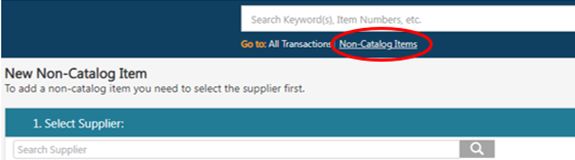
For purchases not available in catalogs:
- Use the Non-Catalog Items option
- Search for the vendor in the directory and create a purchase order
Helpful notes:
- Refer to the user manual for step-by-step instructions
- If a vendor is not listed:
- Submit a W-9 form
- Send an "add request" to
Additional Resource:
Approval workflows are built into each user's profile.
- Orders are routed to designated approvers.
- Approvers can:
- Approve orders for processing
- Reject orders with comments for revision
To update approval workflows (e.g., staff changes or department chair updates), contact: casey.avery@cortland.edu
Refer to the approver manual for detailed instructions.
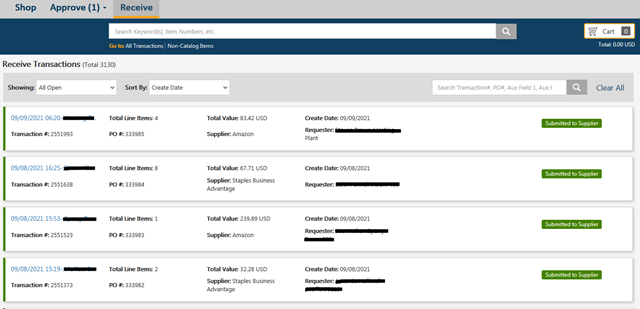
Once goods or services are received:
- Orders must be marked as received in RDD promptly
- User the Receive tab to complete this step
Important:
- After receiving is complete, email invoices to: accounts.payable@cortland.edu
- Do not attach invoices in RDD - no notification is sent to Purchasing and Accounts Payable
Refer to the receiving guide for step-by-step instructions.
Reasonableness of Price Form (required for orders of $2,500 or more)
SUNY Cortland uses a centralized Amazon Business account managed by Purchasing and Accounts Payable.
If you previously registered using your cortland.edu email:
Steps to Deregister
-
-
- Log in and download your order history (recommended: last 6-12 months)
- Deregister your account: https://amazon.com/gp/b2b/manage/deregister.
Your account data will transfer to the shared account once you accept the invitation
To request a tax refund:
- Go to Your Orders on Amazon
- Select the item and click Contact the Seller
- If unavailable, call ATEP Support: 1-888-280-9552
- Use the subject: Tax Exemption Refund Request
- Include:
- Order number
- Tax amount charged
Vendors must response within 72 hours.
To ensure RDD functions properly, allow pop-ups for:
https://eprocurement.esmsolutions.com:443
Directions by Browser:
- Google Chrome
- Open Chrome
- Go to Settings → Privacy and Security → Site Settings
- Click Pop-ups and redirects
- Under "Allowed," click Add and enter the URL above
- Enter https://eprocurement.esmsolutions.com:443 and click Add
- Firefox
- Open Firefox
- Go to Settings → Privacy & Security
- Under Permissions, click Exceptions next to pop-ups
- Add the URL and click Allow